Download the paper here, along with other Microsoft Access tips.
Showing posts with label design. Show all posts
Showing posts with label design. Show all posts
Wednesday, September 30, 2009
Estimating the Complexity of Your MS Access Database
We've just published a new white paper to help Access beginners to help estimate the complexity of a new Microsoft Access database project. The paper offers a scoring system to help decide how complex your database project may be, and the level of experience that is likely required.


Thursday, August 20, 2009
A few myths and truths about MS Access Security
It seems at least once a month, I see some trade magazine or blogger snipe that Microsoft Access is the least secure place to store your data, or that Access is a hacker's dream. An article in InformationWeek this month offers some empirical data to combat the myth that MS Access databases are a wide open vault door:

(source: InformationWeek "Database Servers: Candy For Hackers")
There is no denying that the "Workstation" and "Laptop" categories would largely pertain to Microsoft Access and FileMaker. Nevertheless, database servers clearly hold the largest share of breaches and records stolen.
Truth: Microsoft Access database files can be hacked
Microsoft designed Access to be secure when the appropriate measures are taken. But even taking those measures, there are publicly available utilities to unlock MS Access passwords, and read the raw database files.
Myth: Access databases are easy to hack
This myth is only a myth if you take the right steps to secure your database in the first place, and I won't go into them here. You'll find a wealth of them available online, including this excellent article on MSDN. But if you take the appropriate measures, you'll be safe from everyone except the interesting characters that sit in front of dark terminals search for vulnerabilities and go by monikers like 'fuN1B0yyy'.
Final Thoughts
If you choose to store confidential and sensitive information in an Access database, take the appropriate measures to limit access to the database. That means securing the database file(s), but also locking down the directory, and machine, where the sensitive information exists. But above all, when you hear a well-meaning colleague scoff "you're storing that in Access...you might as well just print it out and pass out copies on the street!!!" you can respond with empirical facts (database servers are more commonly breached) and the steps you've taken to appropriately secure your sensitive data.

(source: InformationWeek "Database Servers: Candy For Hackers")
There is no denying that the "Workstation" and "Laptop" categories would largely pertain to Microsoft Access and FileMaker. Nevertheless, database servers clearly hold the largest share of breaches and records stolen.
Truth: Microsoft Access database files can be hacked
Microsoft designed Access to be secure when the appropriate measures are taken. But even taking those measures, there are publicly available utilities to unlock MS Access passwords, and read the raw database files.
Myth: Access databases are easy to hack
This myth is only a myth if you take the right steps to secure your database in the first place, and I won't go into them here. You'll find a wealth of them available online, including this excellent article on MSDN. But if you take the appropriate measures, you'll be safe from everyone except the interesting characters that sit in front of dark terminals search for vulnerabilities and go by monikers like 'fuN1B0yyy'.
Final Thoughts
If you choose to store confidential and sensitive information in an Access database, take the appropriate measures to limit access to the database. That means securing the database file(s), but also locking down the directory, and machine, where the sensitive information exists. But above all, when you hear a well-meaning colleague scoff "you're storing that in Access...you might as well just print it out and pass out copies on the street!!!" you can respond with empirical facts (database servers are more commonly breached) and the steps you've taken to appropriately secure your sensitive data.
Friday, August 14, 2009
Create Microsoft Access Forms
We've just released our newest version of Designer for Microsoft Access. Version 3.0 features automatic MS Access forms creation.
After the success of our first product, UI Builder, we found that most Access users never intend to become database architects, and would prefer to just get on with using their database. Thus, we created Designer to make it far easier to build Access database tables and relationships using a plain-English Q&A style wizard. Over and over, Designer customers would tell us, "you're product is great, but how do I create data entry forms that will show all the information in one place." So we went back to work on Designer to solve that problem, too.
The new Designer creates tables and relationships automatically, and then creates forms with a "header" section that displays many records as a list, and then a bottom section that contains related records from other tables. For example, if you have a "Patients" form that displays a list of all patients in your database, the bottom section of the form Designer creates can display related appointments, emergency contacts, prescriptions, visits, and notes.
What Microsoft Access problems are you trying to solve? We love a challenge, especially if many Access users will benefit!
After the success of our first product, UI Builder, we found that most Access users never intend to become database architects, and would prefer to just get on with using their database. Thus, we created Designer to make it far easier to build Access database tables and relationships using a plain-English Q&A style wizard. Over and over, Designer customers would tell us, "you're product is great, but how do I create data entry forms that will show all the information in one place." So we went back to work on Designer to solve that problem, too.
The new Designer creates tables and relationships automatically, and then creates forms with a "header" section that displays many records as a list, and then a bottom section that contains related records from other tables. For example, if you have a "Patients" form that displays a list of all patients in your database, the bottom section of the form Designer creates can display related appointments, emergency contacts, prescriptions, visits, and notes.
What Microsoft Access problems are you trying to solve? We love a challenge, especially if many Access users will benefit!
Monday, December 29, 2008
Database Design and Abstract Thought
We're hard at work with a new product to be released very soon, and some interesting things have come up in user testing. One of the most common challenges we see for Microsoft Access users is the database design itself. And by design, I mean the tables and how they relate to one another. When you are working in Access, the form and report design are addictive tools because they are largely what-you-see-is-what-you-get (wysiwyg). But of course, without the underlying tables to store and present the data, your forms and reports aren't going to get you too far.
In the end, database design is an exercise in the abstract. Its taking very concrete concepts like:
Product X can be blue, red, or yellow
Product Y can be orange, gray, white
And then figuring out how to create a database that can help users select from the available options. To do so, you need to move from concrete to the abstract. Otherwise, you get an ugly database where you have a table "tblProduct" with check box fields for each possible color, and bunch of awkward code to make it work. But by thinking of the abstract concepts, which isn't always an easy feat, it's clear you want to actually have a separate table for color. Then, because each product may have more than one possible color, you have to create another table where you can marry them together.
So what's the tip for the day? When thinking of how to architect your database:
Happy New Year!!!!
In the end, database design is an exercise in the abstract. Its taking very concrete concepts like:
Product X can be blue, red, or yellow
Product Y can be orange, gray, white
And then figuring out how to create a database that can help users select from the available options. To do so, you need to move from concrete to the abstract. Otherwise, you get an ugly database where you have a table "tblProduct" with check box fields for each possible color, and bunch of awkward code to make it work. But by thinking of the abstract concepts, which isn't always an easy feat, it's clear you want to actually have a separate table for color. Then, because each product may have more than one possible color, you have to create another table where you can marry them together.
So what's the tip for the day? When thinking of how to architect your database:
- If you think of the "thing" in the plural, it's probably a table unto itself. Products, customers, contacts, notes, colors, etc. In some cases it's just a simple lookup table.
- If you are naming the field and you label it in the plural, you may be describing a many-to-many relationship as opposed to just an attribute of the thing your table contains (as in the example we started with where you're tracking Products, if you started to name a field "Possible Colors," it probably deserves some reconsideration as just a field in your Products table).
- Try to avoid creating separate tables just to differentiate the state of something. For example, if you want to track Customers and Prospects, and all the fields are the same, it's highly recommended that you keep them all in a single table, and have a field that refers to each records' state (customer or prospect). You can then filter your forms, queries, and reports if you need to show only one. Plus, if someone changes from a Prospect to a Customer, it's a single field value that changes. No messy transfer of data from one table to another to signify the change of status.
Happy New Year!!!!
Friday, April 4, 2008
Making use of Continous Forms
For those of you that may be new to Access, here is an important tip to create more effective database forms: take advantage of the "Continuous Forms" feature extensively. Especially if you or your users are coming from an Excel-based world.
Basic Use
In the most basic approach, you would simply create a form that has the form property View" to "Continuous Forms." This will give you the multi-row view you and your users are "Default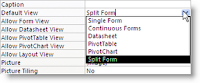 accustomed to.
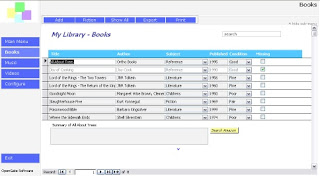
And to make sure you're using the most of your screen real estate, just put the most important fields in the Detail section of the form. If you have another set of fields that is less important, put in the "Footer" section of the form. In the example below, you'll notice there are only five columns in the main section.
 (yes, I know, not the most obvious looking icon, one of the many rough adjustments to the new ribbon UI)
Advanced Approach
The best way to approach interface design is often to aggregate data from multiple data sources in a single place for the user. This can best be accomplished by placing a subform in the main Form Footer section. And even better, making that subform a continous form. For example, you have Customers in your main form, and in the Form Footer subform, you'd like to see all the Orders for the selected Customer. Create your Orders form. Then in the Form Footer section of the main form, insert a subform (look for the icon on the design toolbox). Now when you select your new Orders form, you'll get an error message (at least in pre-2007 versions) telling you that Access will need to set the main form to a Single Form view instead of Continuous Forms. Ignore that error and proceed. Now that you have your subform in the Footer, feel free to change your main form back to a Continuous Form. Everything will work just fine, and now you can work more efficiently with your data all in single place. Here's a good example from our Assets template:
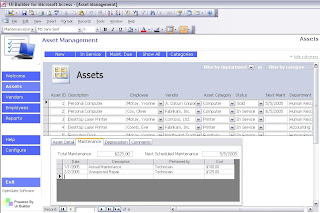
Note that you can see the asset, and all related maintenance records, in a single place.

Basic Use
In the most basic approach, you would simply create a form that has the form property View" to "Continuous Forms." This will give you the multi-row view you and your users are "Default
 accustomed to.
And to make sure you're using the most of your screen real estate, just put the most important fields in the Detail section of the form. If you have another set of fields that is less important, put in the "Footer" section of the form. In the example below, you'll notice there are only five columns in the main section.

The rest (in this case it's just a big notes field) can be put down at the bottom, and will change automatically based on the record you've selected. To display the Header/Footer, if it doesn't show up already, you'll need to click "View>>Header/Footer" in older versions of Access. In Access 2007, you'll need to look for an icon in the "Arrange" tab of the Ribbon that looks like this:
 (yes, I know, not the most obvious looking icon, one of the many rough adjustments to the new ribbon UI)
Advanced Approach
The best way to approach interface design is often to aggregate data from multiple data sources in a single place for the user. This can best be accomplished by placing a subform in the main Form Footer section. And even better, making that subform a continous form. For example, you have Customers in your main form, and in the Form Footer subform, you'd like to see all the Orders for the selected Customer. Create your Orders form. Then in the Form Footer section of the main form, insert a subform (look for the icon on the design toolbox). Now when you select your new Orders form, you'll get an error message (at least in pre-2007 versions) telling you that Access will need to set the main form to a Single Form view instead of Continuous Forms. Ignore that error and proceed. Now that you have your subform in the Footer, feel free to change your main form back to a Continuous Form. Everything will work just fine, and now you can work more efficiently with your data all in single place. Here's a good example from our Assets template:

Note that you can see the asset, and all related maintenance records, in a single place.
Saturday, July 28, 2007
The advice you'll get on design
Let me start by saying there are a lot of very smart experts out there on MS Access. But if there is one piece of advice that gets me going, it's the statement "newbies to Access like to start with what they can see (forms/reports) but this is the last thing you should consider." What I take issue with about statements like this is as follows: if you think like a developer, your application will be made for developers. That means your table structures, code modules, and queries will all be very efficient and (hopefully) architecturally sound. The flip side is, you aren't giving appropriate attention to the end product, and you're more likely to end up with a data-driven design. The end product isn't the tables, functions, and queries that make up your application. It's the menus, forms, reports, and other elements that will comprise the user experience. So what process would I advocate?
1) Determine your requirements. What is it that the end product needs to do to answer your particular problem or need? To help think through the process, you can either spend a lot of time pondering your requirements in your head, or you can whip up a few form/report prototypes and see if you've thought of everything you'll need to meet your needs.
2) Create your design. What is it that your application will need to do in the background to meet your requirements. If you've done a good enough job of thinking through what your requirements are to solve your problem, your design will show that. For example, if you know you'll need to be able to create an extensive number of reports based on dates or other data attributes, your design will be sure to take that into consideration. Similarly, if your requirement is that your application needs to be readily deployed to multiple users without a lot of time copying databases to each person's PC, you're probably going to design your application differently than if you just start creating tables and functions without a thought for the end product.
3) Start creating. Seems simple, but this is where you'll get the opportunity to test your commitment to some of the items you thought of in (1). That is, you may find that actually creating your solution to meet your requirements is harder than it seems, and you'd prefer to sacrifice a few of your requirements to make it easier to develop or maintain.
4) Test. Preferably use someone other than yourself, that may have familiarity with the problem space and desired solution, but hasn't been deeply involved in the development. Why? Because the second you started designing and creating your solution, you begin to think like a developer, not a user. You'll know intimate quirks and their workarounds, something an uninitiated user won't. Thorough testing, especially where your tester purposely tries to "break" things, will ensure you aren't inadvertently signed up to do a great deal of recurring training.
5) Repeat 1-4. The process never ends, does it!
Sunday, July 22, 2007
Don’t rely on that Access wizard that creates a form based on your table…
It may be the easiest, neatest little way to get going quickly. Using the “AutoForm” wizard may seem like the best way to create a form, but it is generally going to lead to the worst user experience. Sure, you can take the resulting AutoForm and tweak it to be a little more usable, but it’s what we call “data driven design.” A philosophy that dominated (by default, really) user interface design for decades, and is only now departing the world. Data driven design means taking the data you want to store, and throwing an interface for user input over it. User driven design, which I hinted at in a previous post, is the way to create happy users and ensure people are more productive.
Rather than putting a form over a table, user driven design will help you to look at the world from a user-process perspective. You are more likely to discover you need to "merge" multiple data sources the user can view or update in a much more efficient manner. For example, while creating new orders (one table), perhaps you need to let the user quickly view key customer information (from a different table) on the same screen, and be able to make changes to your contact history with that customer (yet another table) from the same screen. All if this is missed if you just rely on the Form Wizard.
And while we’re on the topic, I’d suggest avoiding the Access Switchboard too. Use something a bit more friendly for users.
Rather than putting a form over a table, user driven design will help you to look at the world from a user-process perspective. You are more likely to discover you need to "merge" multiple data sources the user can view or update in a much more efficient manner. For example, while creating new orders (one table), perhaps you need to let the user quickly view key customer information (from a different table) on the same screen, and be able to make changes to your contact history with that customer (yet another table) from the same screen. All if this is missed if you just rely on the Form Wizard.
And while we’re on the topic, I’d suggest avoiding the Access Switchboard too. Use something a bit more friendly for users.
Sunday, July 15, 2007
Design…on the fly, or up front?
Whether you’re starting afresh, you’ve already started and have a good functioning solution, or you’re contemplating your next project, don’t sacrifice the wisdom of good design in order to start having fun creating forms and reports. Top 3 reasons why:
1) Good Form. If you’ve ever played piano, golf, or even used a pencil, you know it’s important to practice good form…it reduces future physical or mental pain.
2) Minimize re-work. If you start a project without enough consideration for design, you’re likely to pay for it later in re-work or lack of functionality.
3) Create happy users, avoid extensive training. If your application will be used by anyone other than yourself, the last thing you want to do is spend a great deal of time training each new users on the idiosyncrasies of your solution. From making sure the field names are well labeled, creating intuitive forms with field arrangements that map to how a user thinks, to capturing all the data needed for someone to carry out their duties, doing a bit of design up front can save time, energy, and frustration in the long-term.
So what is the secret to good design? Well, I won’t pretend to be the expert, there are hundreds of books written on the topic. But for me, it is the same as creating a good presentation or letter…think like your audience. In this case, not you as the user, but someone who will wasn’t involved in the thought process for the design, but needs to understand how to use your application nonetheless.
How much time you actually spend designing is very subjective and dependent on how complex your project is going to be. But do put the horse before the cart when it comes to design.
Subscribe to:
Posts (Atom)