On occasion I run into comments regarding Microsoft Access that range from simple derision to downright vehement hatred. Seriously. But by and large, you'll hear things from "serious" developers like "oh, it's just a few macros in an Access database." When in reality, you may have a fully respectable business application built using Visual Basic. Why the hostility from professional software developers and IT? I'll do my best to explain as I see it.
The first reason is that, quite frankly, Access isn't everything that a C++, Java, or .NET application can become. In the eyes of some developers with a BS in computer science, Access ranks right along side Microsoft Excel (thus the reference to "macros") in terms of capability, reliability, and extensibility. Moreover, Visual Basic is the descendant of BASIC, which is sort of like training wheels on a bicycle. Most professional developers (I'm speaking in the sense of C++/Java/.NET developers. There are plenty of VB professional developers, too) think in terms of how deployable, extensible, flexible, reliable, and robust a software application can be, which is generally a function of the programming language. A Microsoft Access database can be all of those things, but not typically to the degree as, say, a J2EE-based server based application that can easily handle hundreds of users simultaneously and change your oil, too. Since life is all about perspective, that's often their frame of reference. And rightly so, that's what they get paid for. But that doesn't explain the hostility.
The more interesting reason, in my mind, for a strong distaste for Microsoft Access is that Access solutions can be perceived to be a threat to a full-time developer's position of importance and purpose. Now, no one will ever come out and say as much. But let's face it, in many cases you can churn out a quick VB-based application to solve a business pain in a matter of a few hours or days. Will it be a full fledged application in the same sense as a C++ or Java application that goes through a development/test cycle? Possibly not, but it can get the job done in the timeframe needed to meet a business problem. And that is a key source of irritation to those who believe Access applications are mere toys.
This is not to say that a C++/Java/RoR/whatchamacallit programmer can't also turn out a fast solution to a problem too, but an Access-based solution may be just what the doctor ordered at the time it was needed, for the number of users, scope of functionality, etc. And that can serve as a direct threat to a full-time programmer's role. The reaction? What appears to be an elitist snuff at Visual Basic and Microsoft Access. But I can guarantee you that I've also seen (and built) Microsoft Access applications that look and function far better than applications built in more powerful programming languages.
The last cause for scorn, and this is often fully warranted, is that Visual Basic and MS Access applications are often created as a learning experience. The result? Spaghetti code, bad error handling, you name it. And while I can't say I agree with what is often a mocking tone from a higher order programming language, I do agree that you have to draw limits to what sorts of Access applications you create if you aren't an expert. It's the classic "know enough to be dangerous" scenario where you may be able to create a Visual Basic application that runs your business, but if it's handling critical tasks and you're still a novice, it may be time to look for a professional. That professional may still create your application in Visual Basic, but that's really a matter of what your underlying needs and long term growth expecations are.
So for all you Access developers out there, novice or lifers, hold your heads high. For all you higher order programming language professionals out there, give them a break. You'll never be obsoleted by suddenly pervasive MS Access applications, and besides, it gives you something to do when the user/customer/business needs outgrow a desktop database application.
Monday, June 30, 2008


Monday, June 2, 2008
The Kind of Thing That Can Ruin a Day
If you're using Access 2007, be sure to read the Access Team's blog on an issue that can wipe out your database when you run the "Compact and Repair" utility.
Click here
Click here
Wednesday, May 14, 2008
Microsoft Access Video Tutorials: Tips and tricks, news, links, downloads on Microsoft Access
Helpful resource with many videos for Access 2007...
Alex & Access: Microsoft Access Video Tutorials: Tips and tricks, news, links, downloads on Microsoft Access
Alex & Access: Microsoft Access Video Tutorials: Tips and tricks, news, links, downloads on Microsoft Access
Tuesday, May 6, 2008
Overcoming Obstacles
A common frustration seen over the years is this: You create a great Access-based utility for personal reasons that might be valuable to others in your organization, but no one else has an Access license. Throwing down another $150 to $300 for an Access license, or Office Professional license, may not be an option.
The solution? Take advantage of the free Access 2007 Runtime edition offered by Microsoft. The Access 2007 runtime can be installed on any Windows machine, whether it has Office installed or not. A user can open an Access database, work in the forms, update data, view reports, and run queries. There are some limitations, of course, and you need to be sure your application is fairly rock solid in terms of menus and error handling.
We've put together a little whitepaper on some of the considerations and benefits to using the Access runtime edition here:
http://www.opengatesw.net/documents/Become A Cost Hero Datasheet.pdf
And here is the link to the download of the runtime version of Access 2007
The solution? Take advantage of the free Access 2007 Runtime edition offered by Microsoft. The Access 2007 runtime can be installed on any Windows machine, whether it has Office installed or not. A user can open an Access database, work in the forms, update data, view reports, and run queries. There are some limitations, of course, and you need to be sure your application is fairly rock solid in terms of menus and error handling.
We've put together a little whitepaper on some of the considerations and benefits to using the Access runtime edition here:
http://www.opengatesw.net/documents/Become A Cost Hero Datasheet.pdf
And here is the link to the download of the runtime version of Access 2007
Friday, April 4, 2008
Making use of Continous Forms
For those of you that may be new to Access, here is an important tip to create more effective database forms: take advantage of the "Continuous Forms" feature extensively. Especially if you or your users are coming from an Excel-based world.
Basic Use
In the most basic approach, you would simply create a form that has the form property View" to "Continuous Forms." This will give you the multi-row view you and your users are "Default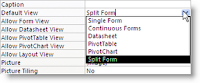 accustomed to.
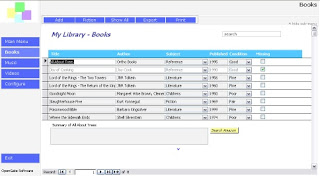
And to make sure you're using the most of your screen real estate, just put the most important fields in the Detail section of the form. If you have another set of fields that is less important, put in the "Footer" section of the form. In the example below, you'll notice there are only five columns in the main section.
 (yes, I know, not the most obvious looking icon, one of the many rough adjustments to the new ribbon UI)
Advanced Approach
The best way to approach interface design is often to aggregate data from multiple data sources in a single place for the user. This can best be accomplished by placing a subform in the main Form Footer section. And even better, making that subform a continous form. For example, you have Customers in your main form, and in the Form Footer subform, you'd like to see all the Orders for the selected Customer. Create your Orders form. Then in the Form Footer section of the main form, insert a subform (look for the icon on the design toolbox). Now when you select your new Orders form, you'll get an error message (at least in pre-2007 versions) telling you that Access will need to set the main form to a Single Form view instead of Continuous Forms. Ignore that error and proceed. Now that you have your subform in the Footer, feel free to change your main form back to a Continuous Form. Everything will work just fine, and now you can work more efficiently with your data all in single place. Here's a good example from our Assets template:
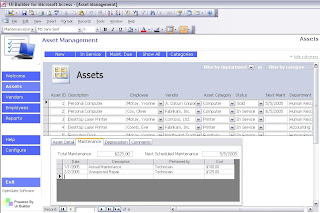
Note that you can see the asset, and all related maintenance records, in a single place.

Basic Use
In the most basic approach, you would simply create a form that has the form property View" to "Continuous Forms." This will give you the multi-row view you and your users are "Default
 accustomed to.
And to make sure you're using the most of your screen real estate, just put the most important fields in the Detail section of the form. If you have another set of fields that is less important, put in the "Footer" section of the form. In the example below, you'll notice there are only five columns in the main section.

The rest (in this case it's just a big notes field) can be put down at the bottom, and will change automatically based on the record you've selected. To display the Header/Footer, if it doesn't show up already, you'll need to click "View>>Header/Footer" in older versions of Access. In Access 2007, you'll need to look for an icon in the "Arrange" tab of the Ribbon that looks like this:
 (yes, I know, not the most obvious looking icon, one of the many rough adjustments to the new ribbon UI)
Advanced Approach
The best way to approach interface design is often to aggregate data from multiple data sources in a single place for the user. This can best be accomplished by placing a subform in the main Form Footer section. And even better, making that subform a continous form. For example, you have Customers in your main form, and in the Form Footer subform, you'd like to see all the Orders for the selected Customer. Create your Orders form. Then in the Form Footer section of the main form, insert a subform (look for the icon on the design toolbox). Now when you select your new Orders form, you'll get an error message (at least in pre-2007 versions) telling you that Access will need to set the main form to a Single Form view instead of Continuous Forms. Ignore that error and proceed. Now that you have your subform in the Footer, feel free to change your main form back to a Continuous Form. Everything will work just fine, and now you can work more efficiently with your data all in single place. Here's a good example from our Assets template:

Note that you can see the asset, and all related maintenance records, in a single place.
Monday, March 3, 2008
Dashboards in Microsoft Access
For all the helpful posts on this blog, we trust you won't mind a few shameless adverts as well. We just released Dashboard Builder for Microsoft Access. If you've ever had to mess with numerous queries just to get a count of customers, a total of revenue, or other key business metrics, Dashboard Builder is for you!

This was a treat to develop. It can take data from any Access table, linked MySQL Server table, or Microsoft SQL Server table, and quickly sum, count, or average the resulting data set.
And since it's compatible with Access 2000-2007 runtime editions, you can give the boss visibility into KPIs without making them pay for the full version of Access.
A free 10-day evaluation copy is available for download on our site:
http://www.opengatesw.net/products/Dashboard%20Builder/DashboardBuilder.htm

This was a treat to develop. It can take data from any Access table, linked MySQL Server table, or Microsoft SQL Server table, and quickly sum, count, or average the resulting data set.
And since it's compatible with Access 2000-2007 runtime editions, you can give the boss visibility into KPIs without making them pay for the full version of Access.
A free 10-day evaluation copy is available for download on our site:
http://www.opengatesw.net/products/Dashboard%20Builder/DashboardBuilder.htm
10+ things you should do before building a custom Access database
A good post from TechRepublic blog 10+ Things about steps to take before you create a custom Access database:
http://blogs.techrepublic.com.com/10things/?p=317
http://blogs.techrepublic.com.com/10things/wp-trackback.php?p=317
http://blogs.techrepublic.com.com/10things/?p=317
http://blogs.techrepublic.com.com/10things/wp-trackback.php?p=317
Subscribe to:
Posts (Atom)